Jump to content
View in the app

A better way to browse. Learn more.

KH13 · for Kingdom Hearts

A full-screen app on your home screen with push notifications, badges and more.

To install this app on iOS and iPadOS
  1. Tap the Share icon in Safari
  2. Scroll the menu and tap Add to Home Screen.
  3. Tap Add in the top-right corner.
To install this app on Android
  1. Tap the 3-dot menu (⋮) in the top-right corner of the browser.
  2. Tap Add to Home screen or Install app.
  3. Confirm by tapping Install.

Aqua Keyblade

Member
  • Joined

  • Last visited

Everything posted by Aqua Keyblade

  1. today is about to start my comic "kingdom destiny"
  2. roxas have hearts ... he can fell it even he is sora's nobody
  3. i very like real music passion that i place music on my forum
  4. i just get 5 likes ... poor me >>>
  5. why !!! why !!! why kinatakeyblade !!!!
  6. did you play kh 3d sora almost to be organization 13 because axel !! XD
  7. i can't think if sora is the organization 13
  8. i just found out in kh 358/2 days japanese chapter 33 roxas had beat saix ... i jealious
  9. Ere Kamakiri cool monster dream eater i see it ... i play it i never win but because riku same cool i can win XD
  10. yeah >>> why you saying i can play that game in my computer you leak
  11. BiRth By SLeeP !!! MY FirST KinGDom HeArts !!!
  12. because my class is on fire to be toasted !!! my class is stove !!! under the lab ... so!!! my lab is on fire !!! love it no school yay!!!!
  13. yay no school this week because... ( see my comments)
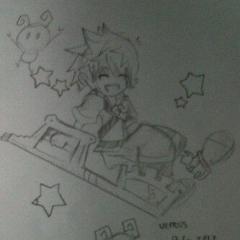
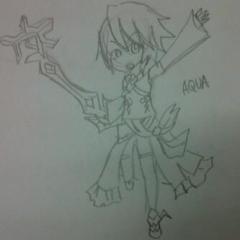
  14. Aqua Keyblade posted a gallery image in Drawings
  15. drawing sora ... more fun ... hehhehe *evil laugh
  16. starting drawing kingdom hearts ... ^^
  17. to add your profile picture just click settings ...^^
  18. the die forum for dinner maybe this die forum for thsi dinner
  19. hello everyone !!! welcome to ... DIE !!!

Configure browser push notifications

Chrome (Android)
  1. Tap the lock icon next to the address bar.
  2. Tap Permissions → Notifications.
  3. Adjust your preference.
Chrome (Desktop)
  1. Click the padlock icon in the address bar.
  2. Select Site settings.
  3. Find Notifications and adjust your preference.
Scroll to the top