




EternalChange
-
Joined
-
Last visited
About Me
Welcome to my domain!
~~~~~~~~~~~~~~~~~~~~~~~~~~~~~~~~~~~~~~~~~~~~~~~~~~~~~~~~~~~~~~~~~~~~~
About me:
Gender: Female
Age: Teen
Sexual orientation: Straight
Favorite color(s): White, Green, Red, and Black
Favorite song(s): Literally every song encountered these days...
Favorite number: 13 and any multiples of it.
Favorite video game(s): Kingdom Hearts (no duh), The Sims 3, World of Warcraft, Child of Light, and Undertale.
Favorite show(s): Teenage Mutant Ninja Turtles (2012 series) and Steven Universe.
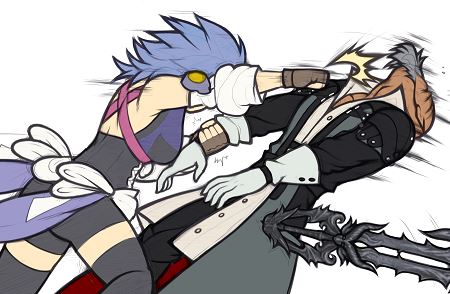
Favorite Kingdom Hearts characters: Ventus (because he's super sweet,) Vanitas (because he's an awesome villain,) and Aqua (because she's the only legitimate female in Kingdom Hearts that isn't a DiD.)
Talents: Music, Writing, Sarcastic Remarks
Zodiac Sign: Virgo
Element: Earth
Bio: Born and raised in the Midwest. Lives with her father, brother and two dogs. One of the top musicians in both her school and church band. Member of National Honor Society, Skills USA, and is a College Ambassador. Plans to be an OB/GYN.
~~~~~~~~~~~~~~~~~~~~~~~~~~~~~~~~~~~~~~~~~~~~~~~~~~~~~~~~~~~~~~~~~~~~~~~
Now a little something extra special for those who decide to put up with my crap:
Yup, that's pretty much it. Good night everybody!
Hope you have a nice visit! 
