Elias Jose
-
Joined
-
Last visited
-
-
Elias Jose posted a status update
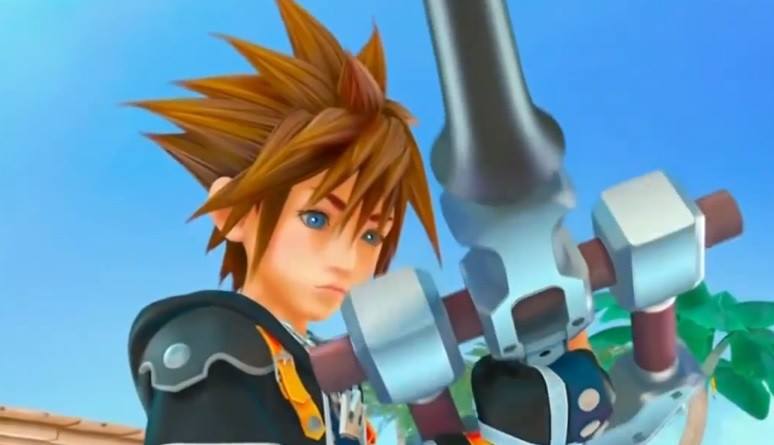
Nintendo announced that those who have 3ds will be able to download the whole game, kingdom hearts 3d from the nintendo e-shop.But we do not know yet if it will be possible in Europe, however if we download the game we save taxes.Although i beieve that the digital form of the game as many disadvantages:First, the downloading of a high-volume game takes much time.Moreover,the game takes large memory space.Then,we may lose the game data in a case of a format or a virus.We will have no bonus or...
Elias Jose repliedAR cards by downloading the game.
By contrast, the original game is more secure, may be accompanied by a bonus and it doesnt needs a lot of space.Then,we can ad this to the collection of our games because all these years we are buying the games and we dont download them.Its a habit that its difficult to cut.The only problem is that we could lose or destroy the game but think something:If we weren't love and noticed the game we wouldn't play it...At least thats my opinion...The ch...
King Riku repliedThis was already announced. But even if it wasn't why would you post it in a status and not a thread where everyone could see it?