Jump to content
View in the app

A better way to browse. Learn more.

KH13 · for Kingdom Hearts

A full-screen app on your home screen with push notifications, badges and more.

To install this app on iOS and iPadOS
  1. Tap the Share icon in Safari
  2. Scroll the menu and tap Add to Home Screen.
  3. Tap Add in the top-right corner.
To install this app on Android
  1. Tap the 3-dot menu (⋮) in the top-right corner of the browser.
  2. Tap Add to Home screen or Install app.
  3. Confirm by tapping Install.

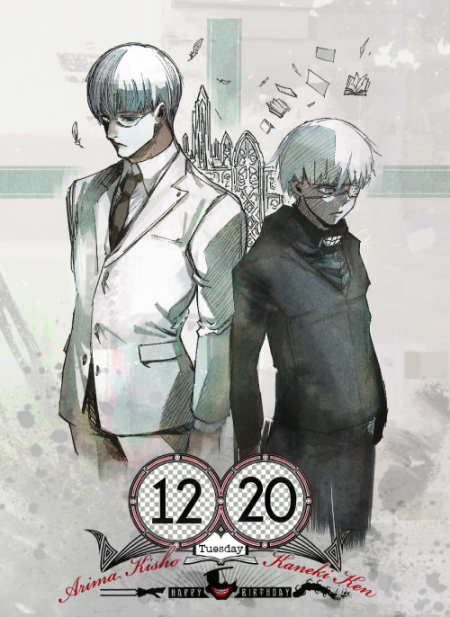
Kaneki Ken

Verified Member
  • Joined

  • Last visited

  1. Kaneki Ken posted a status update

    oooooh no. Everytime I hear "wonderful" I think twewy.

  2. Kaneki Ken posted a status update

    daaang, I'm not doing too good at mw3 now. am I doing something wrong in the game?

    venxas24 replied

    I never do good on COD

    Kaneki Ken replied

    im 5th prestige and have .95 ratio. I need help.

    Kaneki Ken replied

    I'm gonna have to resort to making the noobiest class ever. (in my opinion)

    Type 95 red dot and rapid fire w/ fmg9 dual wield.

  3. Kaneki Ken posted a status update

    I'm doing chemistry make up work, and it contains math problems. My playlist starts playing Someday from TWEWY. why do I feel so cold???

    Kaneki Ken replied

    SHOOOOOOOOOO!!!!!

    Pi face, my friend. That's why you felt so cold.

    Kaneki Ken replied

    oh factor.....

  4. Kaneki Ken posted a status update

    ooooo crap Got twister mix going through my head.

    Xiala920 replied

    that song is awesome~

    Kaneki Ken replied

    Agreable. its fresh and I like how the acoustics are applied into the song.

  5. Kaneki Ken posted a status update

    one more day of exams, then Summer break!!

  6. Kaneki Ken posted a status update

    Man exams are killing me. I'm not sure which is harder, Chem or Alg 2. all are Honors.Oh well wish me luck!

Configure browser push notifications

Chrome (Android)
  1. Tap the lock icon next to the address bar.
  2. Tap Permissions → Notifications.
  3. Adjust your preference.
Chrome (Desktop)
  1. Click the padlock icon in the address bar.
  2. Select Site settings.
  3. Find Notifications and adjust your preference.
Scroll to the top