Siimple Waii Kean
Verified Member
-
Joined
-
Last visited
-
 AndrewHankinson reacted to a post in a topic:
KH13 Giveaway: Share your creativity for a chance to win Kingdom Hearts HD 2.8: Final Chapter Prologue!
AndrewHankinson reacted to a post in a topic:
KH13 Giveaway: Share your creativity for a chance to win Kingdom Hearts HD 2.8: Final Chapter Prologue!
-
SoraUltimateKeybladeMaster reacted to a post in a topic:
second entry for Kingdom Hearts 2.8 Final Chapter Prologue give away contest
-
SoraUltimateKeybladeMaster reacted to a post in a topic:
entry for Kingdom Hearts 2.8 Final Chapter Prologue give away contest
-
AndrewHankinson reacted to a post in a topic:
entry for Kingdom Hearts 2.8 Final Chapter Prologue give away contest
-
Mykaila Shakespeare reacted to a post in a topic:
second entry for Kingdom Hearts 2.8 Final Chapter Prologue give away contest
-
Mykaila Shakespeare reacted to a post in a topic:
entry for Kingdom Hearts 2.8 Final Chapter Prologue give away contest
-
catmaster0116 reacted to a post in a topic:
second entry for Kingdom Hearts 2.8 Final Chapter Prologue give away contest
-
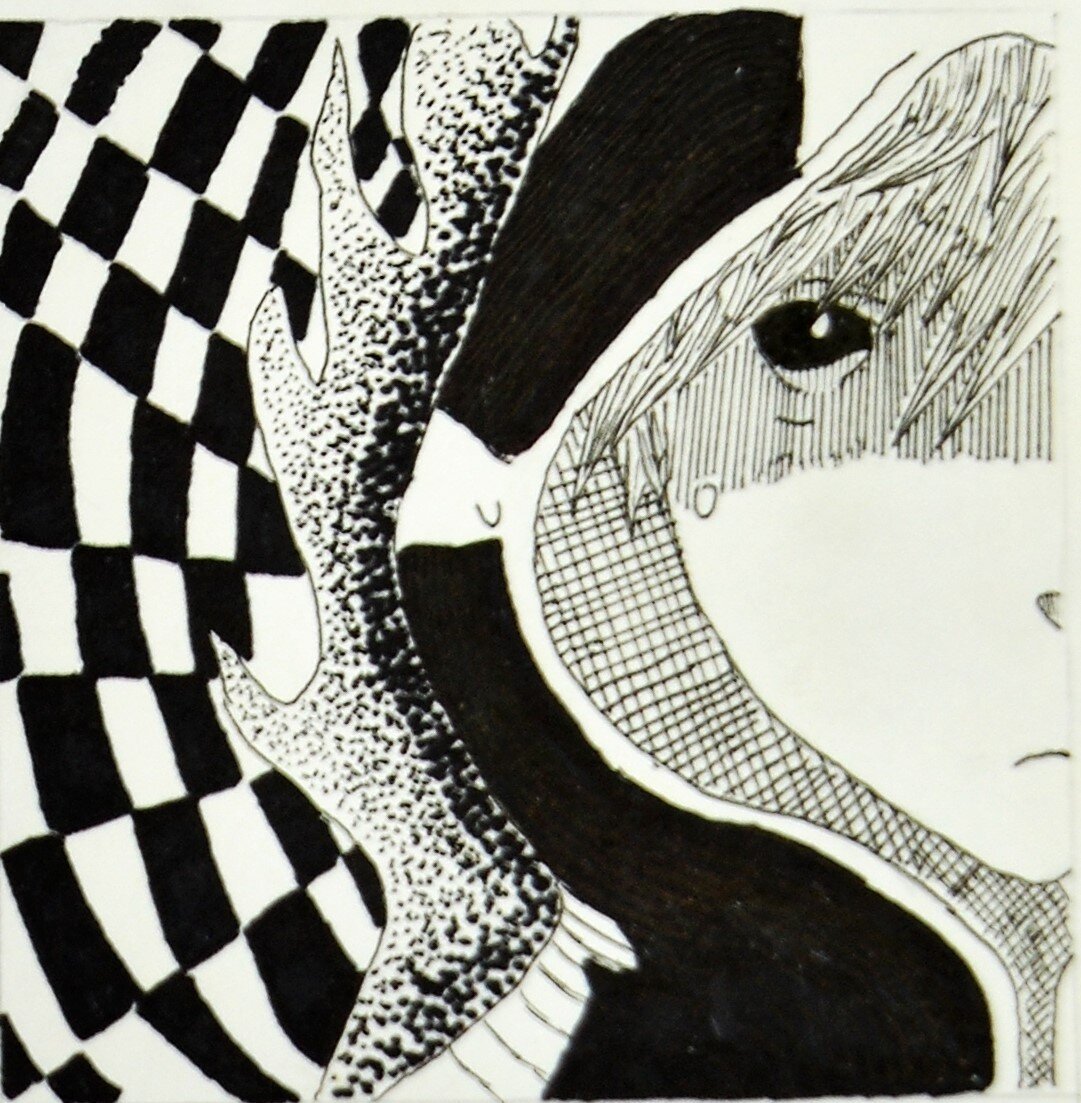
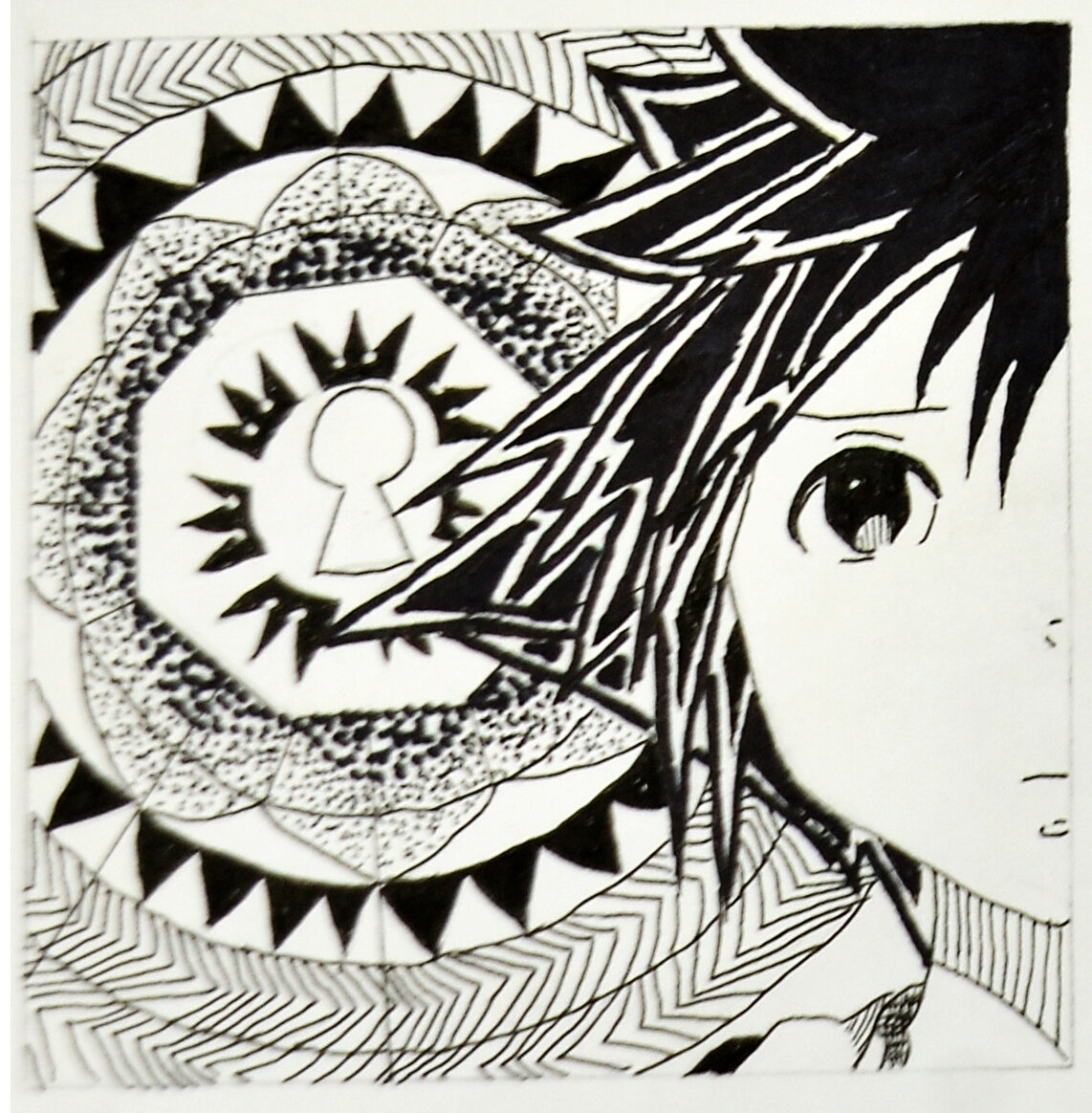
 my submission http://kh13.com/forum/topic/102782-entry-for-kingdom-hearts-28-final-chapter-prologue-give-away-contest/ second submission http://kh13.com/forum/topic/102783-second-entry-for-kingdom-hearts-28-final-chapter-prologue-give-away-contest/
 -