Jump to content
View in the app

A better way to browse. Learn more.

KH13 · for Kingdom Hearts

A full-screen app on your home screen with push notifications, badges and more.

To install this app on iOS and iPadOS
  1. Tap the Share icon in Safari
  2. Scroll the menu and tap Add to Home Screen.
  3. Tap Add in the top-right corner.
To install this app on Android
  1. Tap the 3-dot menu (⋮) in the top-right corner of the browser.
  2. Tap Add to Home screen or Install app.
  3. Confirm by tapping Install.
Posted
Note: This is a special chat topic! This means that posts can be shorter and more casual here. Posts here are linked with and may appear on our Discord server.
  • Replies 73.1k
  • Views 1.7m
  • Created
  • Last Reply

Top Posters In This Topic

Most Popular Posts

Posted Images

Featured Replies

My little sister has had this thing since she was six, her file number has to correspond with her age

Weird place to talk about that

And she got super excited because she can finally go to file number 9

Well it was about KH1

ah

Ah

Conflicts in literature:

Otti vs Channel Topic

It's cool seeing her progress from file 6/7/8/9

:gandalfwhite:

Will the ps4 even work then is the answer

When she turns 100 the world will have ended anyway

Also I just played a bit for her, I don't see the complaints about KH1 being aged

The camera is the only big issue

It's fluid enough to me

The rest is all fine

Well I haven't played kh in a couple months

I would say it is not as clunky as BBS

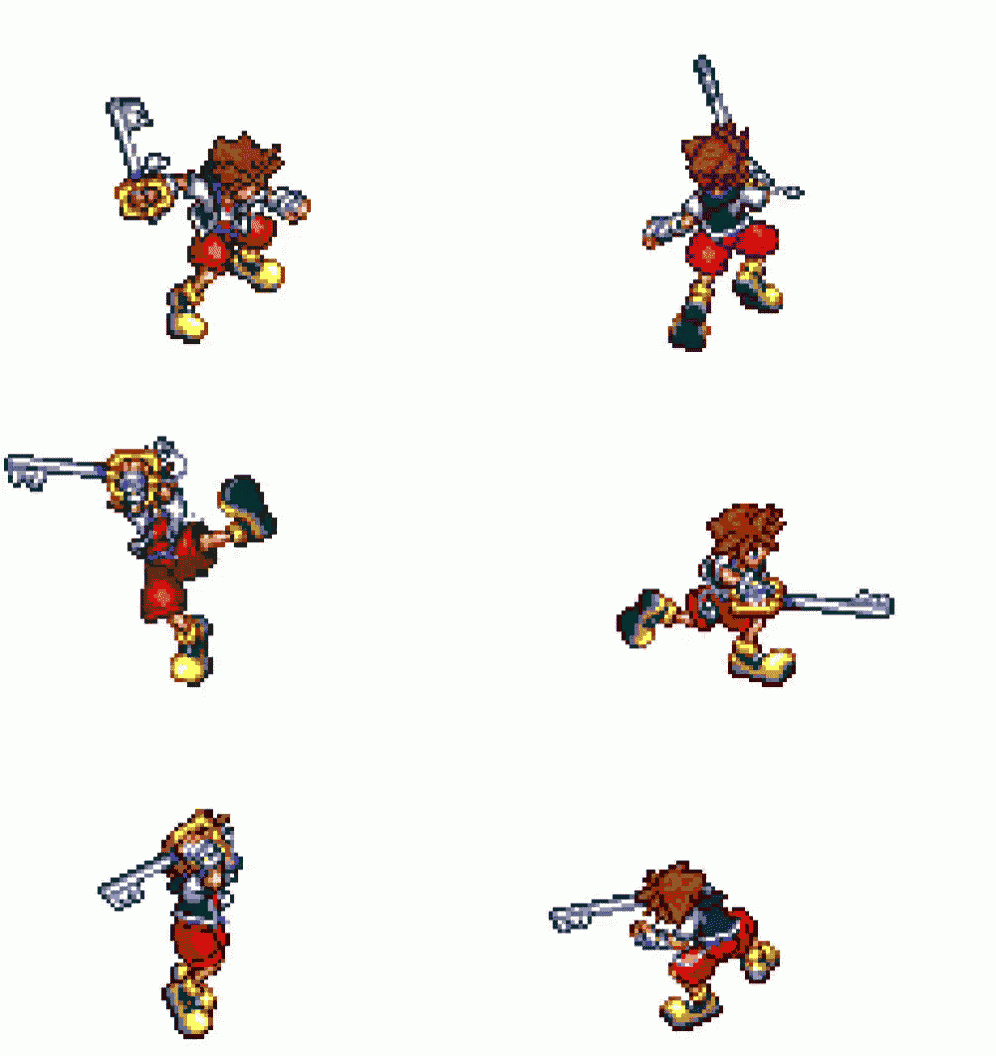
I hate how Sora moves in it

Heavy bastard

Maybe if I played kh2/3 immediately before I'd notice

I genuinely don't feel that way

I thought all the motion was pretty good

I genuinely despised it when I played it

CoM is still worse tho

Goddamn

Come on, it's not that bad

It was

Just finished 100 acre wood

BBS

Otti started with BBS

Join the conversation

You can post now and register later. If you have an account, sign in now to post with your account.

Guest
Reply to this topic...

Configure browser push notifications

Chrome (Android)
  1. Tap the lock icon next to the address bar.
  2. Tap Permissions → Notifications.
  3. Adjust your preference.
Chrome (Desktop)
  1. Click the padlock icon in the address bar.
  2. Select Site settings.
  3. Find Notifications and adjust your preference.
Scroll to the top