Jump to content
View in the app

A better way to browse. Learn more.

KH13 · for Kingdom Hearts

A full-screen app on your home screen with push notifications, badges and more.

To install this app on iOS and iPadOS
  1. Tap the Share icon in Safari
  2. Scroll the menu and tap Add to Home Screen.
  3. Tap Add in the top-right corner.
To install this app on Android
  1. Tap the 3-dot menu (⋮) in the top-right corner of the browser.
  2. Tap Add to Home screen or Install app.
  3. Confirm by tapping Install.
  • Replies 164
  • Views 9.8k
  • Created
  • Last Reply

Top Posters In This Topic

Most Popular Posts

Featured Replies


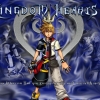
Pretty cool picture man!!!


Just pack three curgas and two ballongas and firaga burst and rest are attack commands pick which attack commands you want.


Just pack three curgas and two ballongas and firaga burst and rest are attack commands pick which attack commands you want.
  • 2 weeks later...

Hahaha.... Why do all kh series are separated in different gadgets... Because its really hard to buy them. Whats next? Wii? Xbox? Anywayn its so coolllllll

  • 3 months later...


I love this picture!
  • 3 months later...

Riku, you look so cute on that icon! I wuvs

  • 3 months later...

My second most favourite Kingdom Hearts game :')

  • 3 weeks later...

This game is awsome

  • 1 month later...

what is the best way to be the best sora in kingdom hearts ddd

I heard they could be making an HD Remastered version of Kingdom Hearts 3D Dream Drop Distance.

  • 4 weeks later...
  • 5 months later...

I have to say, Dream Drop distance has got to be the best kingdom hearts game out of all of them, i8n my opinion.

  • 4 months later...

Are there any type of news of a potential HD Remake of DDD??

  • 2 months later...


its already announced for KH 2.8 HD remix. it will be released at PS4
  • 5 months later...

Configure browser push notifications

Chrome (Android)
  1. Tap the lock icon next to the address bar.
  2. Tap Permissions → Notifications.
  3. Adjust your preference.
Chrome (Desktop)
  1. Click the padlock icon in the address bar.
  2. Select Site settings.
  3. Find Notifications and adjust your preference.
Scroll to the top