




All Activity
- Past hour
-
 Will be playing wolverine too, and then control resonant at the end of the month
 -
-
 Too much shit coming out it’s rough
 -
Want to play that one soon but gonna be after Fire Emblem. Playing Wolverine on Tuesday and hope to get it done in two days. Trying to finish Beast of Reincarnation before Wolvie is out
-
Different kinds of parry so trying to pull them all off just to see the animations is so fun
-
The mobs suck, they aren't a challenge but the bosses hit like crack
-
Man the bosses in the new onimusha game are so damn fun
-

-
 IMAGIIIIIINNNNNNNEEEEEEEE
 -
https://fxtwitter.com/BuffGamerDad/status/2098909077631823986
- Yesterday
-
 https://fixupx.com/ian052503/status/2098674347338768839?s=20
 -

-
-
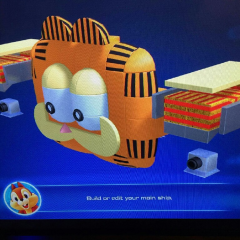

 salmon.sammy joined the community

 jasperbetancure1999 joined the community
Account
Search
Configure browser push notifications
Chrome (Android)
- Tap the lock icon next to the address bar.
- Tap Permissions → Notifications.
- Adjust your preference.
Chrome (Desktop)
- Click the padlock icon in the address bar.
- Select Site settings.
- Find Notifications and adjust your preference.
Safari (iOS 16.4+)
- Ensure the site is installed via Add to Home Screen.
- Open Settings App → Notifications.
- Find your app name and adjust your preference.
Safari (macOS)
- Go to Safari → Preferences.
- Click the Websites tab.
- Select Notifications in the sidebar.
- Find this website and adjust your preference.
Edge (Android)
- Tap the lock icon next to the address bar.
- Tap Permissions.
- Find Notifications and adjust your preference.
Edge (Desktop)
- Click the padlock icon in the address bar.
- Click Permissions for this site.
- Find Notifications and adjust your preference.
Firefox (Android)
- Go to Settings → Site permissions.
- Tap Notifications.
- Find this site in the list and adjust your preference.
Firefox (Desktop)
- Open Firefox Settings.
- Search for Notifications.
- Find this site in the list and adjust your preference.
