Jump to content
View in the app

A better way to browse. Learn more.

KH13 · for Kingdom Hearts

A full-screen app on your home screen with push notifications, badges and more.
To install this app on iOS and iPadOS
  1. Tap the Share icon in Safari
  2. Scroll the menu and tap Add to Home Screen.
  3. Tap Add in the top-right corner.
To install this app on Android
  1. Tap the 3-dot menu (⋮) in the top-right corner of the browser.
  2. Tap Add to Home screen or Install app.
  3. Confirm by tapping Install.
  • Replies 34.2k
  • Views 776.2k
  • Created
  • Last Reply

Top Posters In This Topic

Most Popular Posts

Posted Images

Featured Replies

Who knows

nostalgia

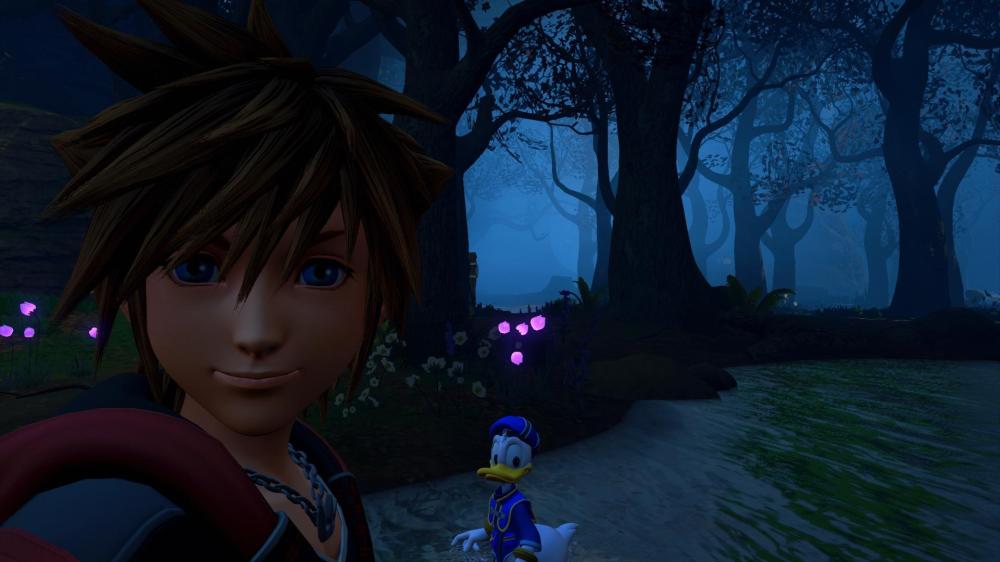
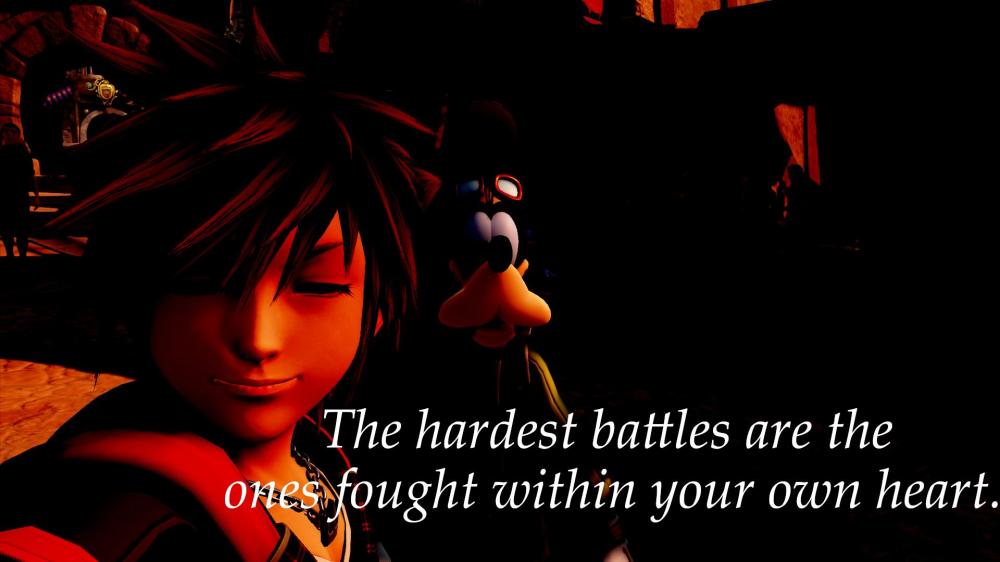
they Iose so much of that expressive aura

As i said

Maybe very different means it looks better

Lets not assume the worst

If it does look worse

We kill nomura

👍

does it
does it reaIIy

any UE5 game I've seen either runs Iike ass, or is bIurrier than an oiI painting

*in Minecraft

and aIso chooses to never use any advanced features cuz we hate you

What UE5 game even is there ?

uhh

fortnite and

uhhhhhhhhhhhhh

Fortnite looks amazing wtf

oh it does

the one good Iooking UE5 game out rn Iemme remember the others uhh

immortaIs of aveum

IoveIy 720p

I think for now thats the only UE5 game we have

Cmon bruh dont compare that slop to kh

I never did 💀

My point is

If that game looks ass

Its the developers fault

agreed

Dont fret

Very different will mean that it looks much better

Trust

I wiII I have to 👍

Join the conversation

You can post now and register later. If you have an account, sign in now to post with your account.

Guest
Reply to this topic...

Configure browser push notifications

Chrome (Android)
  1. Tap the lock icon next to the address bar.
  2. Tap Permissions → Notifications.
  3. Adjust your preference.
Chrome (Desktop)
  1. Click the padlock icon in the address bar.
  2. Select Site settings.
  3. Find Notifications and adjust your preference.
Scroll to the top