Jump to content
View in the app

A better way to browse. Learn more.

KH13 · for Kingdom Hearts

A full-screen app on your home screen with push notifications, badges and more.

To install this app on iOS and iPadOS
  1. Tap the Share icon in Safari
  2. Scroll the menu and tap Add to Home Screen.
  3. Tap Add in the top-right corner.
To install this app on Android
  1. Tap the 3-dot menu (⋮) in the top-right corner of the browser.
  2. Tap Add to Home screen or Install app.
  3. Confirm by tapping Install.
  • Replies 40.2k
  • Views 952.3k
  • Created
  • Last Reply

Top Posters In This Topic

Most Popular Posts

Posted Images

Featured Replies

tai yasue said that we will be able to use the keychain for traversal
Don’t do that I’ll find you and tell Donald to use ZETTAFLARE
always good to have more movement options
I WANNA USE ZETTA FLARE TO NUKE A SINGLE SOLDIER HEARTLESS
Nomura favor number is 7 let’s be honest
https://fxtwitter.com/kingdomhearts/status/2088794859218075961?s=46
Still not on youtube
Guys I got PEAK TO SHOW
That reenactment of the kh2 ending scene was kinda akward ngl
there no volume
You know in 2022 nomura said it’ll focus more on their daily lives
Does that mean more cooking mini games
I remember that’s what people based the Starbucks barista memes off of
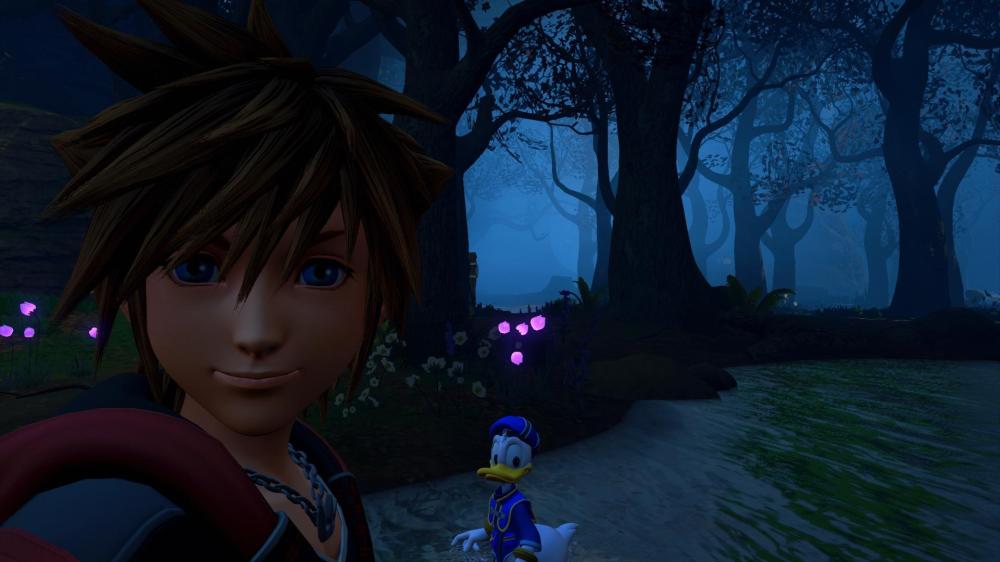
notice we didnt even see donald using a magic command he fights with some projectiles that dont consume MP

Join the conversation

You can post now and register later. If you have an account, sign in now to post with your account.

Guest
Reply to this topic...

Configure browser push notifications

Chrome (Android)
  1. Tap the lock icon next to the address bar.
  2. Tap Permissions → Notifications.
  3. Adjust your preference.
Chrome (Desktop)
  1. Click the padlock icon in the address bar.
  2. Select Site settings.
  3. Find Notifications and adjust your preference.
Scroll to the top