Jump to content
View in the app

A better way to browse. Learn more.

KH13 · for Kingdom Hearts

A full-screen app on your home screen with push notifications, badges and more.

To install this app on iOS and iPadOS
  1. Tap the Share icon in Safari
  2. Scroll the menu and tap Add to Home Screen.
  3. Tap Add in the top-right corner.
To install this app on Android
  1. Tap the 3-dot menu (⋮) in the top-right corner of the browser.
  2. Tap Add to Home screen or Install app.
  3. Confirm by tapping Install.
  • Replies 35.4k
  • Views 831.1k
  • Created
  • Last Reply

Top Posters In This Topic

Most Popular Posts

Posted Images

Featured Replies

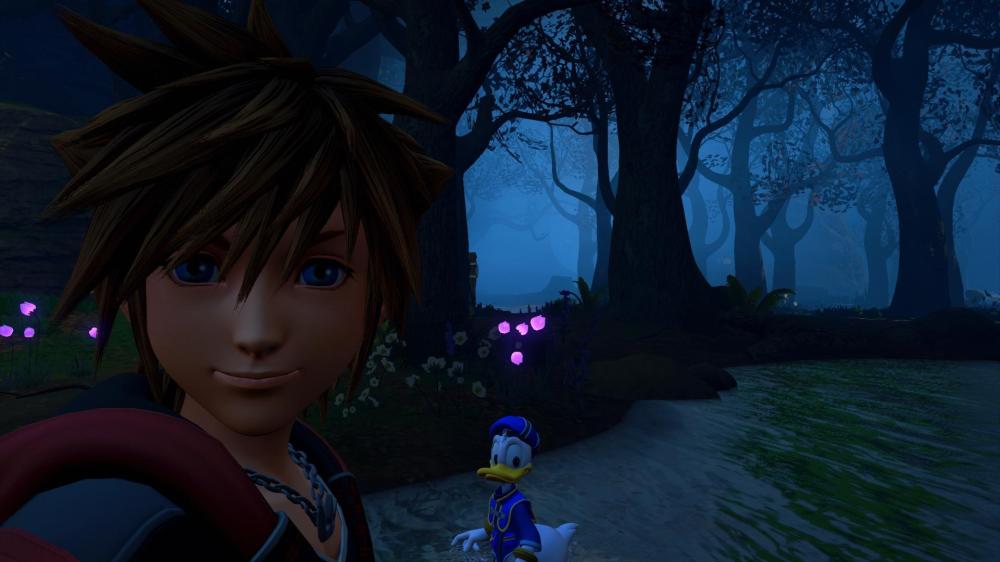
or like it changes as he levels up
All i need now.....
Is him....
(he didn't kill his father)
he look the same way im looking at ts Discord Image
hearing aid or airpods Discord Image
Air Pods
Or as KH would call them something like
Kingdom Cups
Channeling your inner daz with that one
he paid 2800 munny from many shifts at starbucks for those
He's finally learning form Jack Garland to listen to limp Bizkit
[i]here is a screenshot of a randomly zoomed in upon texture from a game you can't quite place.[/i] Discord Image
[/i]JACK GARLAND
square just hit this move huh
Upload a few videos one day
Keybuds and they're linked to the Build mechanic for whatever reason :KEKInsane:
Noooow you're thinking
me? thinking? less likely than you think
i like the way you think

Join the conversation

You can post now and register later. If you have an account, sign in now to post with your account.

Guest
Reply to this topic...

Configure browser push notifications

Chrome (Android)
  1. Tap the lock icon next to the address bar.
  2. Tap Permissions → Notifications.
  3. Adjust your preference.
Chrome (Desktop)
  1. Click the padlock icon in the address bar.
  2. Select Site settings.
  3. Find Notifications and adjust your preference.
Scroll to the top