All Activity
- Past hour
-
 https://fxtwitter.com/Wario64/status/2097875806102204650
 -
They broke up
-
https://fxtwitter.com/Wario64/status/2097875565877534853
-
-
-
- Today
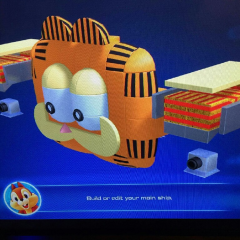 Yo it's that guy from fortnite
 https://fxtwitter.com/SpyroTheDragon/status/2097823678763307282?s=20
 *whistle *whistle *whistle
I got my budget ocarina
https://fxtwitter.com/vicctre/status/2097767105068441783?s=20
I need to go back to learning how to play it
I have my Ocarina too!!!
Can’t rn fighting Xaldin
*whistle *whistle *whistle
I got my budget ocarina
https://fxtwitter.com/vicctre/status/2097767105068441783?s=20
I need to go back to learning how to play it
I have my Ocarina too!!!
Can’t rn fighting Xaldin Like these sorcerer portals.
https://klipy.com/gifs/doctorstrange-drstrange
Maybe we should talk about what MCU movies or shows would fit in well in KH?
Like these sorcerer portals.
https://klipy.com/gifs/doctorstrange-drstrange
Maybe we should talk about what MCU movies or shows would fit in well in KH? There was an explanation in DR that MX shaved his own head as a sign of his resolve, which is much more official than my reasoning that he simply traded his head hair for facial hair.
If you do OrganizationXIII coming after you
There was an explanation in DR that MX shaved his own head as a sign of his resolve, which is much more official than my reasoning that he simply traded his head hair for facial hair.
If you do OrganizationXIII coming after you i have literally never played a wind instrument in my life, please excuse the terrible breath control Click here to view video