




All Activity
- Past hour
-
 I need to still get to the Resonance demo lol I just downloaded it
 -
 I already played both Rebirth demos. I meant the full game lol
 -
Damn you and Queen are matching
-
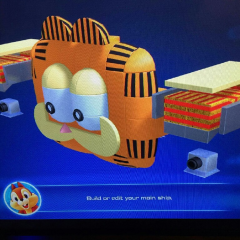 Great news there's a rebirth demo
 -
 No but its Square Enix, they put out a demo for everything nowadays
 -
Probably. Which I can't play because I haven't played Rebirth yet
-
Did they send word if a Revelations demo is coming?
-
Sad they aren't putting out a public demo for Control Resonant though
-
Oh no worries there I fully plan on playing Control 1 first
-
Sky Remake FC didn't exist at the time
-
That was my problem with Trails. I didn't.
-
who is Resonant and why is someone Controlling them
-
No, no, no, just play it in release order lmao
-
I mean, Control Resonant is coming out next week
-
Why would I do these 32 hit combos when I get interrupted 3 moves in
-
-
the world has moved on from Devil May Cry, old man
-
So it was a massive mistake for me to start with Cold Steel 1 apparently
-
 I like me a parry but im tired of that being a core mechanic
 -
 I never played MGS so I don't have much to say 🤔
 -
It's like MGS apparently. You have to play it in a specific order
-
-
-
Nah thats parry insert buzz word* slop
-
