All Activity
- Past hour
-

- Today
-
 King Riku changed their profile photo
 -
 https://klipy.com/gifs/do-it-72
 -
-
 https://vxtwitter.com/DiscussingFilm/status/2094268028275863906
 -
Easily the best ep so far really enjoyed it
-
 Bought a fake kh keyblade for 12.18
 -
connorza_16 joined the community
-
 <https://twitch.tv/firemasterlucky>
 -

-
Yes data organization are done! Click here to view video
-
 New Lanterns was great, was afraid they were gonna go with the [spoiler]chosen one[/spoiler] trope with John, but nah he's just built different
 -
 https://klipy.com/gifs/its-not-true-thats-impossible-star-wars
 -
Chadley is Jenova trust
-
-
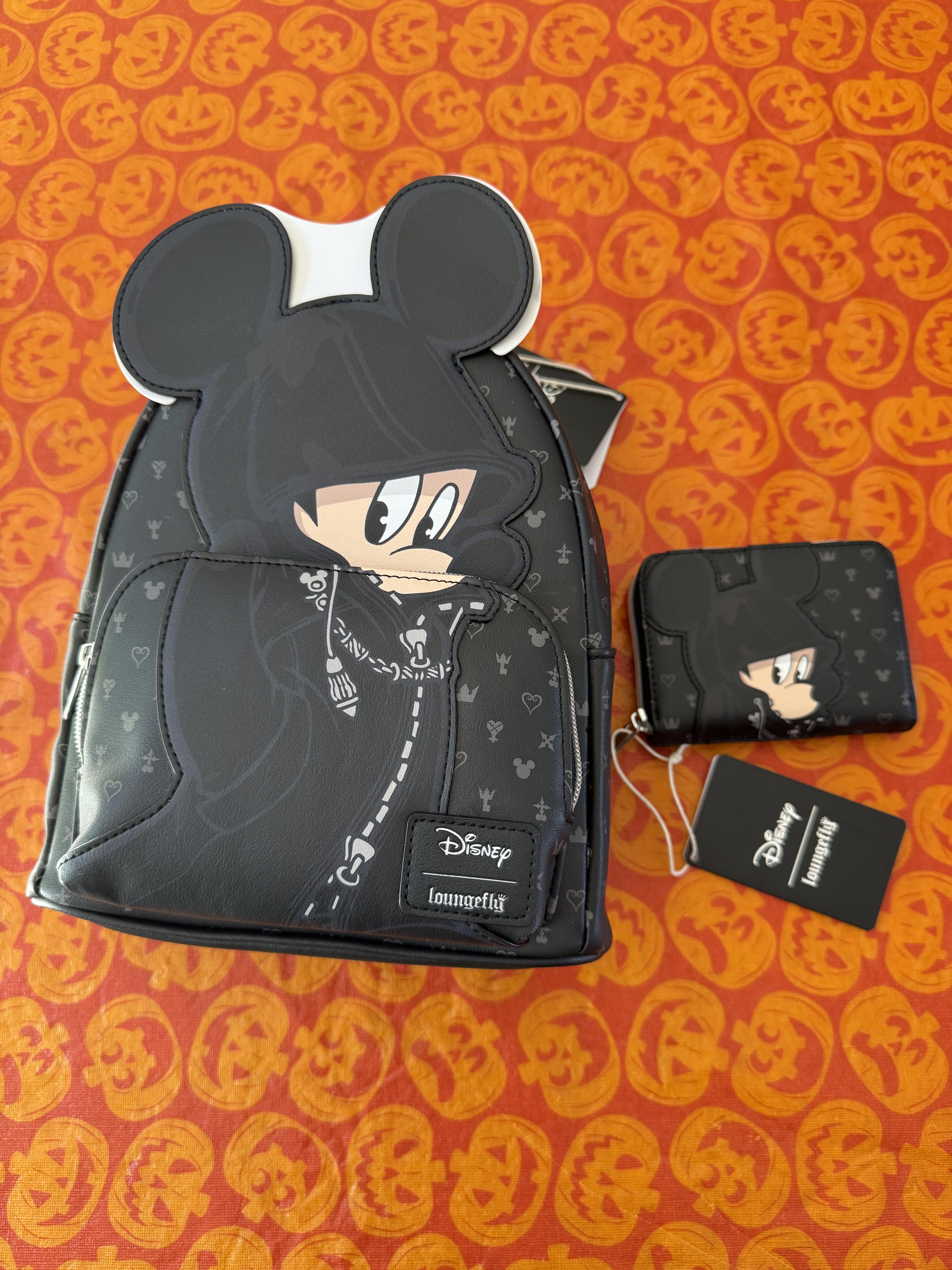
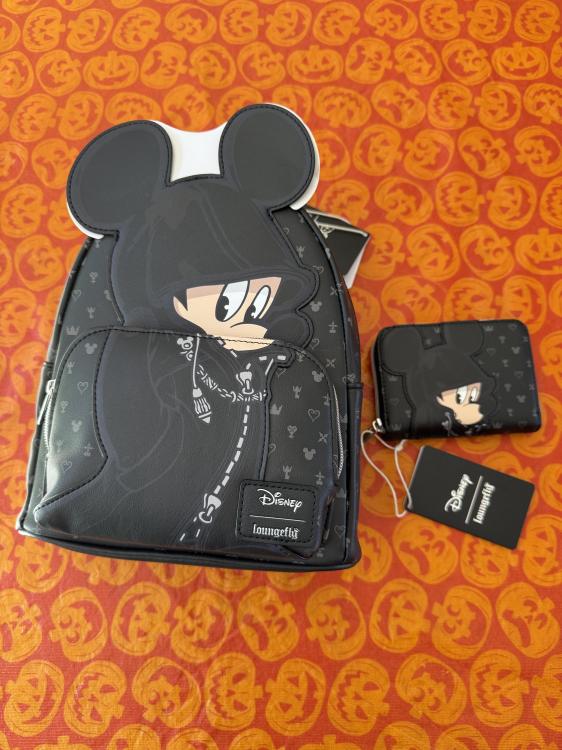
Got this set thanks to my amazing husband @Queen Tery calling around, tracking them down, and driving over an hour to get them for me! 😭 ❤️
-
 Yeah it was the intern’s contribution to the project
 -
not actually anything relevant
-
wasnt that just a fun easter egg
-
-
-
-
-

-
-
-
- Yesterday
-