Jump to content
View in the app

A better way to browse. Learn more.

KH13 · for Kingdom Hearts

A full-screen app on your home screen with push notifications, badges and more.

To install this app on iOS and iPadOS
  1. Tap the Share icon in Safari
  2. Scroll the menu and tap Add to Home Screen.
  3. Tap Add in the top-right corner.
To install this app on Android
  1. Tap the 3-dot menu (⋮) in the top-right corner of the browser.
  2. Tap Add to Home screen or Install app.
  3. Confirm by tapping Install.
Posted
Note: This is a special chat topic! This means that posts can be shorter and more casual here. Posts here are linked with and may appear on our Discord server.
  • Replies 14.5k
  • Views 454.5k
  • Created
  • Last Reply

Top Posters In This Topic

Most Popular Posts

Posted Images

Featured Replies

I mean ig but that's keyblade already

Your name is also a great name for a Keyblade

Immortal Surge? I can totally see that being a Keyblade name

When I make Keyblades, I usually think of the lore behind it and whatever it’s based on before naming it.

I should start doing that In the future imma commission more keyblades

Star Bright?

Cause theres already Star Light, so, it'd be that, but, also be a reference to that thing from Pinocchio "star Light star bright first star I see tonight" and stuff.

I started to draw this because of an argument.
unknown.png

I’m retaliating.

I think I’m funny.

Blue

Blue

Blue > green

Here's my cousin keyblade he name it Vow'O Vain

immortalsurge_comm2.png

Nice to see more with the car key design

Yea I think their really nice for design too

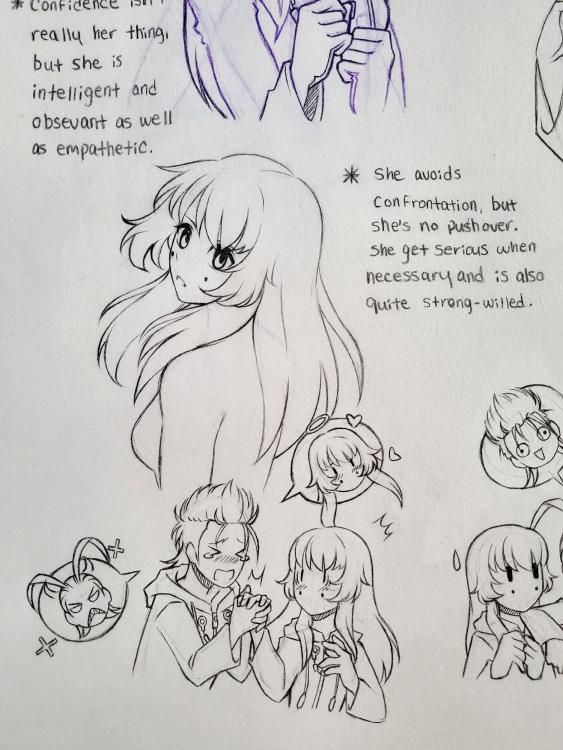
I already showed Inari this, but this is our son.
IMG_3315.jpg
IMG_3325.jpg

His face is a little firetrucked up, but we love him.

Join the conversation

You can post now and register later. If you have an account, sign in now to post with your account.

Guest
Reply to this topic...

Configure browser push notifications

Chrome (Android)
  1. Tap the lock icon next to the address bar.
  2. Tap Permissions → Notifications.
  3. Adjust your preference.
Chrome (Desktop)
  1. Click the padlock icon in the address bar.
  2. Select Site settings.
  3. Find Notifications and adjust your preference.
Scroll to the top