Jump to content
View in the app

A better way to browse. Learn more.

KH13 · for Kingdom Hearts

A full-screen app on your home screen with push notifications, badges and more.

To install this app on iOS and iPadOS
  1. Tap the Share icon in Safari
  2. Scroll the menu and tap Add to Home Screen.
  3. Tap Add in the top-right corner.
To install this app on Android
  1. Tap the 3-dot menu (⋮) in the top-right corner of the browser.
  2. Tap Add to Home screen or Install app.
  3. Confirm by tapping Install.
  • Replies 38.8k
  • Views 949.4k
  • Created
  • Last Reply

Top Posters In This Topic

Most Popular Posts

Posted Images

Featured Replies

the fact that they're still showing only quadratum footage makes me think they've still been in dev hell
That’s what I’m thinking
Yeah but they could’ve shown Mickey in the library or something
Welp, on my way home. No way I can work like this.
This happened too damn early in the morning XD
Wait I’m dumb
Forgot Mickey Mouse is a Disney character 😭😭😭
When it happened I was like 'well there goes my morning' lol
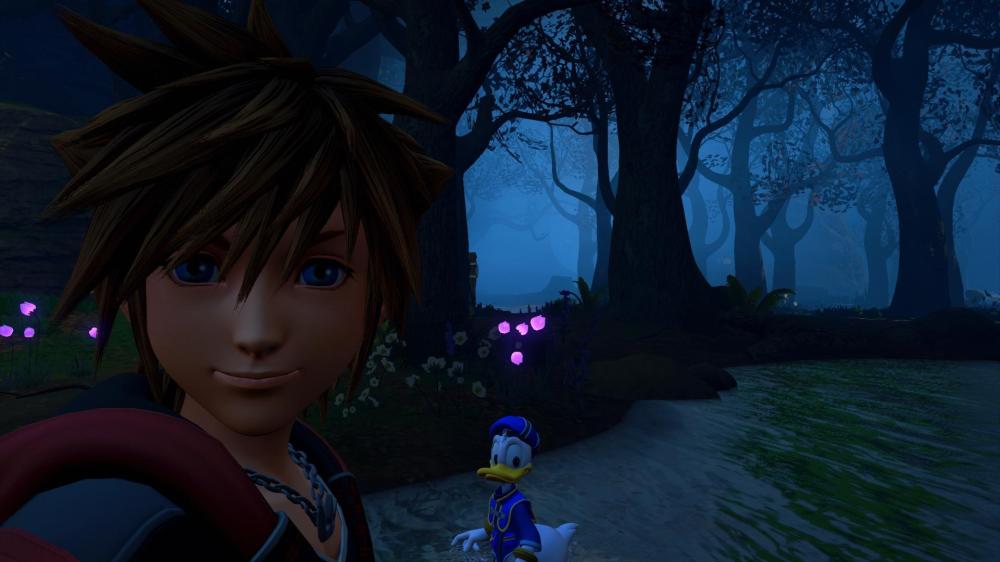
But they did show goofy and Donald
Luxord
Just got home, gonna take a shower and then watch the trailer 💀 I feel icky from sweat-its too damn hot
Every single showcase since it got announced I’ve been sat waiting for this and then my friend was joking and said today is the day
Genuinely couldn’t believe my eyes when that recomp trailer ended
https://vxtwitter.com/sawyersaurus_/status/2064364754781507930
I really need to catch up on the mobile game lore before any more stuff comes out, I genuinely am clueless on that side of things
I was so shocked I think it might need to rewatch it tbh lol. Is it up yet lol
The scene at the end of KH3 with the box and all those guys genuinely means nothing to me I’ve even looked at explanations and still have no clue

Join the conversation

You can post now and register later. If you have an account, sign in now to post with your account.

Guest
Reply to this topic...

Configure browser push notifications

Chrome (Android)
  1. Tap the lock icon next to the address bar.
  2. Tap Permissions → Notifications.
  3. Adjust your preference.
Chrome (Desktop)
  1. Click the padlock icon in the address bar.
  2. Select Site settings.
  3. Find Notifications and adjust your preference.
Scroll to the top