Jump to content
View in the app

A better way to browse. Learn more.

KH13 · for Kingdom Hearts

A full-screen app on your home screen with push notifications, badges and more.

To install this app on iOS and iPadOS
  1. Tap the Share icon in Safari
  2. Scroll the menu and tap Add to Home Screen.
  3. Tap Add in the top-right corner.
To install this app on Android
  1. Tap the 3-dot menu (⋮) in the top-right corner of the browser.
  2. Tap Add to Home screen or Install app.
  3. Confirm by tapping Install.
  • Replies 35.2k
  • Views 830.1k
  • Created
  • Last Reply

Top Posters In This Topic

Most Popular Posts

Posted Images

Featured Replies

Still?
It’s been 7 years
Sora having a different keyblade in this trailer is interesting cuz I just assumed this was the start of the game
Unless it’s something to do with the builds system
his keyblade has a 4 pointed star and a moon symbol on it
The Build command changes based on Keyblade equipped
I thought maybe the Build changes the keyblade rather than equitable keyblades now?
the keychain is a 4 pointed star too, looks like roxas symbol kinda
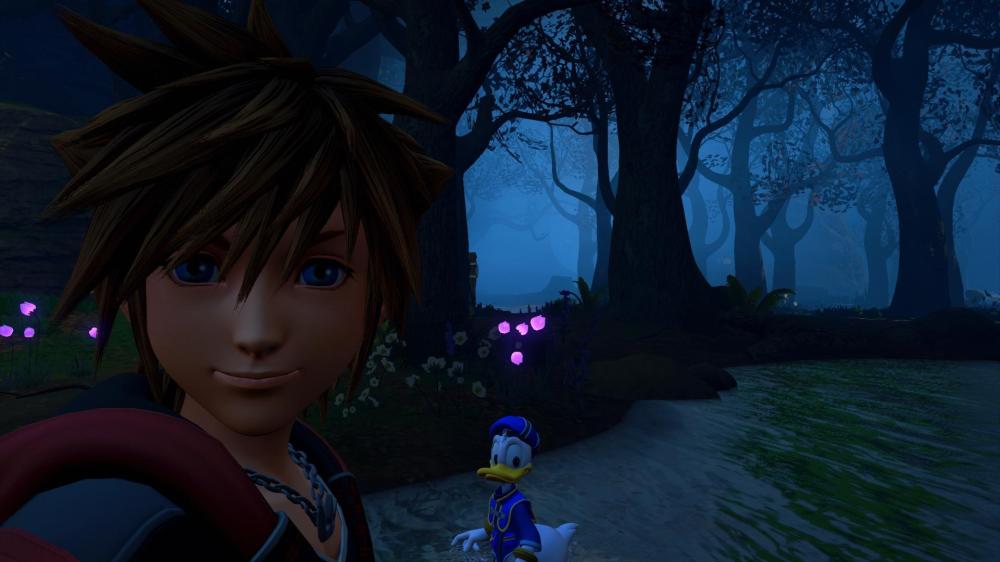
Tbh I just hope we don’t spend too much time there, it’s too gloomy for what I want lol
If only San Fransoyko was like this in KH3
Quadratum is hub world 1000% yes
I just started playing through ff7 rebirth again but I might need to continue my KH playthrough 😭
I'm kind of still hoping for TWEWY stuff but that new trailer makes me think I might need to give up on that already lol oh well I guess 😅
https://fixupx.com/NintendoES/status/2064360403421761590
only nintendo version comes with hud
Is this ad not twewy Discord Image
Looks like it's art style
That's so weird but alright
L2 seems to be a shortcut for this build command Discord Image
1000% it was literally the last place I was expecting it to be at

Join the conversation

You can post now and register later. If you have an account, sign in now to post with your account.

Guest
Reply to this topic...

Configure browser push notifications

Chrome (Android)
  1. Tap the lock icon next to the address bar.
  2. Tap Permissions → Notifications.
  3. Adjust your preference.
Chrome (Desktop)
  1. Click the padlock icon in the address bar.
  2. Select Site settings.
  3. Find Notifications and adjust your preference.
Scroll to the top