0408mark58
Verified Member
-
Joined
-
Last visited
-

 This is a fan-made picture, not official.
 -
 This is non-official logo I made, But I'm looking forward to releasing KH2.9 if it's true.
 -
-
-
 Moochieh32 reacted to a post in a topic:
Kingdom Hearts HD 2.5 ReMIX featured in the August 21 issue of Famitsu Weekly
Moochieh32 reacted to a post in a topic:
Kingdom Hearts HD 2.5 ReMIX featured in the August 21 issue of Famitsu Weekly
-
Thisguy64 reacted to a post in a topic:
Kingdom Hearts HD 2.5 ReMIX featured in the August 21 issue of Famitsu Weekly
-
Terranort9406 reacted to a post in a topic:
Kingdom Hearts HD 2.5 ReMIX featured in the August 21 issue of Famitsu Weekly
-
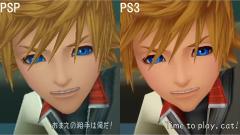
I'm sorry... It's my fault. The screen capturing tool I use has some problems about colors and brightness... Honestly, it could be worse if I didn't add corrections.
It's like this.
His face --especially his chin-- on PS3 trailer is little different from that on PSP. Can you see?