




All Activity
- Past hour
-
 Imagine the movie is good and the audience loves it too
 -
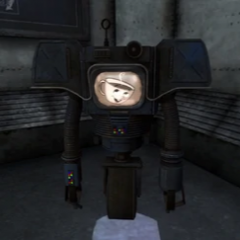 They gave him his melanin back
 -
 you're right, we did have that too!
 -

-
what do you mean, we had Advent Children :)
-
I bet this one's gonna be uhhhhhh historicaIIy videogame movies weren't that good untiI sonic. It was onIy after that and the mario movie that they became god's gift to humanity
-
man I sure do care immensIy about a videogame movie
-
whoever took that screenshot had their in-game UI Contrast setting set wayyyy too high
-
 daz4th you are the fornite guy. enlighten me pls
what the hell. why does he look so different ingame?
daz4th you are the fornite guy. enlighten me pls
what the hell. why does he look so different ingame? For real? https://vxtwitter.com/ShiinaBR/status/2100249377751093728?s=20
 https://vxtwitter.com/keenbiscuit/status/2100210543646908698
 Someone forgot I don't play racing games
- Today
 https://vxtwitter.com/shinobi602/status/2100198599732678909

 https://fxtwitter.com/Cedrik1699/status/2100199076981563487
https://vxtwitter.com/Fortnite/status/2100208410415477041
The only thing that's annoying is the 15 cards limit for now
But I'm having a blast with Queen's Blood
There are some puzzles in general where I give up in the end and look up answers 😭
https://fxtwitter.com/Cedrik1699/status/2100199076981563487
https://vxtwitter.com/Fortnite/status/2100208410415477041
The only thing that's annoying is the 15 cards limit for now
But I'm having a blast with Queen's Blood
There are some puzzles in general where I give up in the end and look up answers 😭
Account
Search
Configure browser push notifications
Chrome (Android)
- Tap the lock icon next to the address bar.
- Tap Permissions → Notifications.
- Adjust your preference.
Chrome (Desktop)
- Click the padlock icon in the address bar.
- Select Site settings.
- Find Notifications and adjust your preference.
Safari (iOS 16.4+)
- Ensure the site is installed via Add to Home Screen.
- Open Settings App → Notifications.
- Find your app name and adjust your preference.
Safari (macOS)
- Go to Safari → Preferences.
- Click the Websites tab.
- Select Notifications in the sidebar.
- Find this website and adjust your preference.
Edge (Android)
- Tap the lock icon next to the address bar.
- Tap Permissions.
- Find Notifications and adjust your preference.
Edge (Desktop)
- Click the padlock icon in the address bar.
- Click Permissions for this site.
- Find Notifications and adjust your preference.
Firefox (Android)
- Go to Settings → Site permissions.
- Tap Notifications.
- Find this site in the list and adjust your preference.
Firefox (Desktop)
- Open Firefox Settings.
- Search for Notifications.
- Find this site in the list and adjust your preference.
