All Activity
- Past hour
-
 also, seems like we're in a period of jubilee revival. x-men '97, marvel rivals, and now tokon too
 -
ooh, josh keaton get, nice!
-
lol, all of the "where's thor" bros are gonna be pissed 😂
-

-

-
Watched the first episode no major change outside of [spoiler] goku's outfit [/spoiler] at the end
-
- Today
-
-
-

-
 https://vxtwitter.com/SASxSH4DOWZ/status/2109303540099526892
 -
you know its some good stuff when it crashes the whole platform
-
https://fixupx.com/DBSEnhanced/status/2109323109929189714
-
 Spider-Man, I mean Agent Spider.
Really made him as ugly as he is
https://vxtwitter.com/TEKKEN/status/2109266974689702291
Spider-Man, I mean Agent Spider.
Really made him as ugly as he is
https://vxtwitter.com/TEKKEN/status/2109266974689702291
 you would think the show was called DBS Goku with how much focus he got
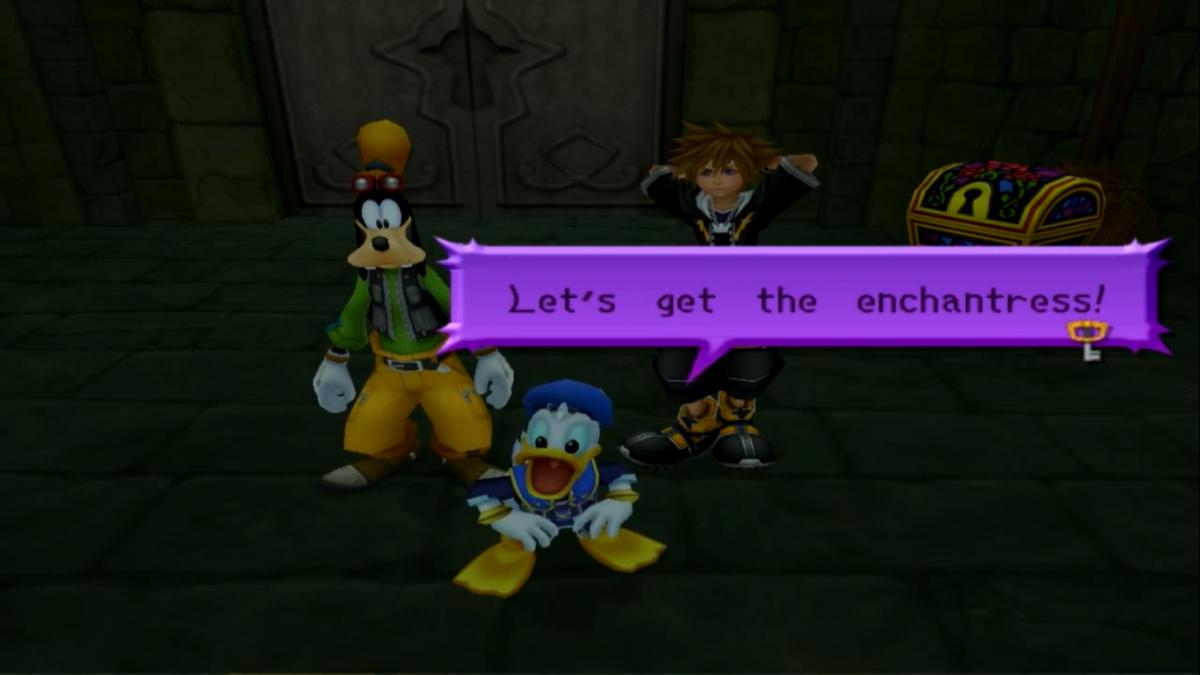
 The controls on the Nintendo Switch 2 version are taking some adaptation, yet I am definitely delighted to have this collection on a handheld device so I can -- at long last -- play the "Kingdom Hearts" Series on the move.

 wow this is the most generic anime opening I've ever seen and heard