Jump to content
View in the app

A better way to browse. Learn more.

KH13 · for Kingdom Hearts

A full-screen app on your home screen with push notifications, badges and more.

To install this app on iOS and iPadOS
  1. Tap the Share icon in Safari
  2. Scroll the menu and tap Add to Home Screen.
  3. Tap Add in the top-right corner.
To install this app on Android
  1. Tap the 3-dot menu (⋮) in the top-right corner of the browser.
  2. Tap Add to Home screen or Install app.
  3. Confirm by tapping Install.
  • Replies 34.2k
  • Views 794.2k
  • Created
  • Last Reply

Top Posters In This Topic

Most Popular Posts

Posted Images

Featured Replies

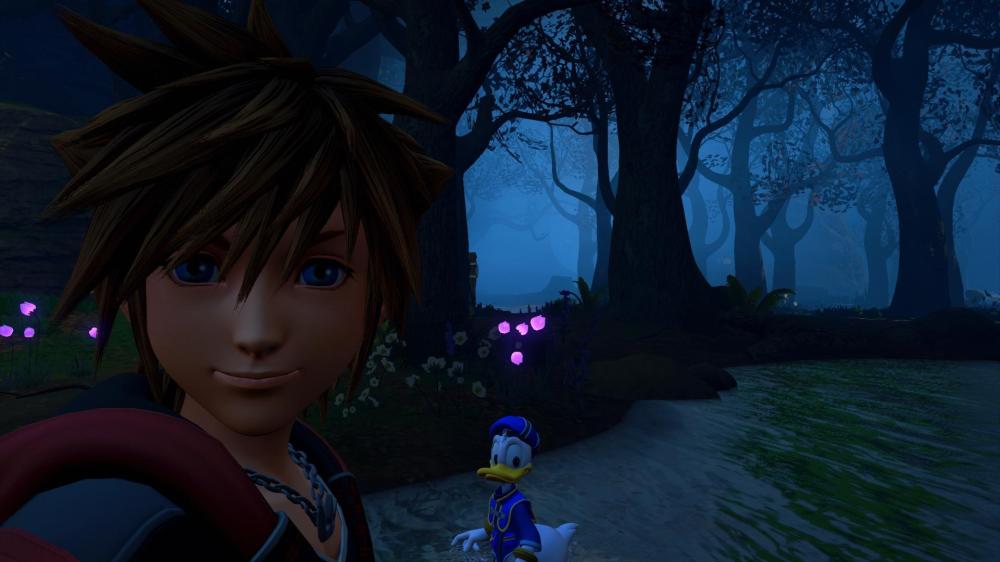
I’m glad he looks more Sora ey now

Original face was a bit too uncanny

so sora is a japanese confirmed

Was that not already true

or final fantasy-er

only four fingers?!?!

But anyway we’re back
D92374B5-6E37-4D64-A661-32D8C6EEDEF9.jpg?ex=6826a721&is=682555a1&hm=fdb14749d26f59b188efa01f4e6d1fdb284e7e29452150055fff4d5742049512&

SE is literally laughing at us right now

nomura plotting to bring back ML sometime soon in all consoles

laughsinnomura laughsinnomura laughsinnomura

fixed the kh4 image for you
image.png?ex=6826a7a8&is=68255628&hm=df5d855a75ca520e918f5703599f4e62017cc883e87e4c570c309cda5de0af23&

yeah thats a great QoL

Join the conversation

You can post now and register later. If you have an account, sign in now to post with your account.

Guest
Reply to this topic...

Configure browser push notifications

Chrome (Android)
  1. Tap the lock icon next to the address bar.
  2. Tap Permissions → Notifications.
  3. Adjust your preference.
Chrome (Desktop)
  1. Click the padlock icon in the address bar.
  2. Select Site settings.
  3. Find Notifications and adjust your preference.
Scroll to the top