



Jump to content
View in the app

A better way to browse. Learn more.

KH13 · for Kingdom Hearts

A full-screen app on your home screen with push notifications, badges and more.

To install this app on iOS and iPadOS
  1. Tap the Share icon in Safari
  2. Scroll the menu and tap Add to Home Screen.
  3. Tap Add in the top-right corner.
To install this app on Android
  1. Tap the 3-dot menu (⋮) in the top-right corner of the browser.
  2. Tap Add to Home screen or Install app.
  3. Confirm by tapping Install.

Featured Replies

wat b0ss

I never realized what a handsome woman Everglow is


Bit of a slob though

If there ever was a God of Neatness it would be him.

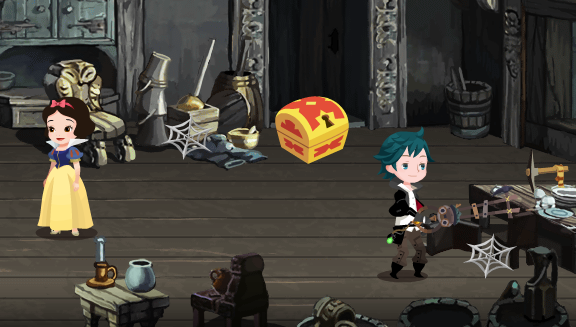
He lives with Snow White in a cluttered cottage, has blue-ish hair, a dwarfed stature and a Keyblade?


Eh, I've seen stranger.

Who's Everglow?

Who's Everglow?


1) One of the staff members.

2) He helps this site in various ways before becoming a staff member through the use of YouTube (unsure of any other ways).

3) He is doing the English KHx walkthrough currently.

4) http://kh13.com/forum/user/46096-everglow/

Edited by Shana09

1) One of the staff members.

2) He helps this site in various ways before becoming a staff member through the use of YouTube (unsure of any other ways).

3) He is doing the English KHx walkthrough currently.

4) http://kh13.com/forum/user/46096-everglow/

Ohk, gotcha 

Nice cottage you've got there Everglow .

  • Author

1) One of the staff members.

2) He helps this site in various ways before becoming a staff member through the use of YouTube (unsure of any other ways).

3) He is doing the English KHx walkthrough currently.

4) http://kh13.com/forum/user/46096-everglow/


He is our partner. He records various videos we need including cutscenes and playthroughs so we can add them to our video archive and so we can promote each other.

That is one ghetto ass keyblade you got there Ever.

Configure browser push notifications

Chrome (Android)
  1. Tap the lock icon next to the address bar.
  2. Tap Permissions → Notifications.
  3. Adjust your preference.
Chrome (Desktop)
  1. Click the padlock icon in the address bar.
  2. Select Site settings.
  3. Find Notifications and adjust your preference.
Scroll to the top

