Ienzo88755
Verified Member
-
Joined
-
Last visited
Everything posted by Ienzo88755
-
 215! So fun!
 -
7 guardians to protect the 7 lights/ the princesses
-
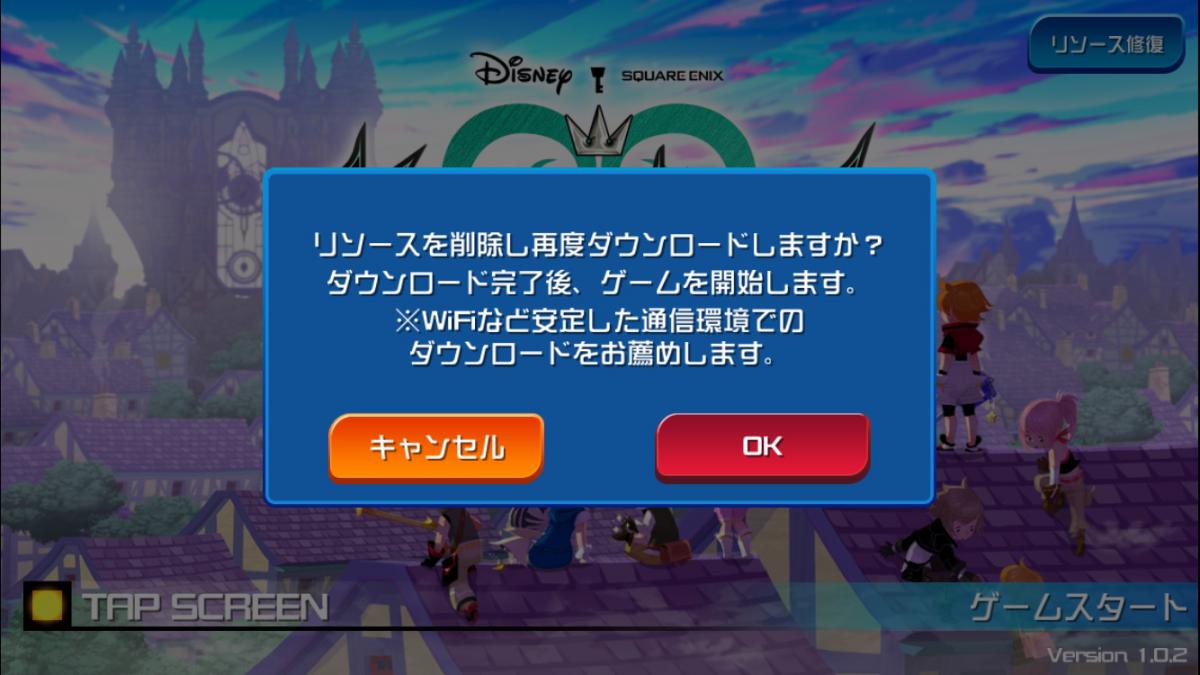
I'd also like to know how to add a friend. But what does this message mean? Something about wifi?

-
-
-
its on random guys i, i doubt its real...
-
ZEXION !!!! His brain is so sexy...
-
It's different. I like it!!
-
-
It's "which" not "witch"... Sorry I'm a grammar freak.
-
I would not mind if Tyler posey did some voice work in a future kingdom hearts. ijs
-
I didn't think it was possible to have a least favorite disney song.
-
The official international website for Kingdom Hearts HD 1.5 ReMIX has been updated. The website has been redesigned and information, images, videos and wallpapers have been added. Official international portal for Kingdom Hearts HD 1.5 ReMIX The "About" section provides information on the HD Collection, while the "Contents" section provides a story summary, character, world descriptions and new features descriptions for all 3 titles in the collection. "Media" contains the two trailers released so far from PAX East 2013 and E3 2013. "Downloads" contains two wallpapers which you can view below, in our gallery in all available resolutions. 1024x768 | 1280x1024 | 1600x1200 | iPad | iPhone View full news article
-
-
It would suck if turned people to zombies
-
Cool. I've seen that scene before but never thought about it that much. Good Theory
-
Wow, the increasing level of threats kind of scares me.
-
please tell me it wasn't about Andrea.
-
-
I know right....
-
METOO! It's awesom!
-
-
-
Well before the keyblade war we can assume that there were a lot more key blade weilders, so maybe it's not that uncommon.
-
Hakuna Matata!