Jump to content
View in the app

A better way to browse. Learn more.

KH13 · for Kingdom Hearts

A full-screen app on your home screen with push notifications, badges and more.

To install this app on iOS and iPadOS
  1. Tap the Share icon in Safari
  2. Scroll the menu and tap Add to Home Screen.
  3. Tap Add in the top-right corner.
To install this app on Android
  1. Tap the 3-dot menu (⋮) in the top-right corner of the browser.
  2. Tap Add to Home screen or Install app.
  3. Confirm by tapping Install.
Posted
Note: This is a special chat topic! This means that posts can be shorter and more casual here. Posts here are linked with and may appear on our Discord server.
  • Replies 33.1k
  • Views 748.6k
  • Created
  • Last Reply

Top Posters In This Topic

Most Popular Posts

Posted Images

Featured Replies

laughsinnomura

Check out @BelkinTheKid’s Tweet:

(Haha sorry for reposting this. i didn't realize i posted it in the wrong channel. ? )
FB_IMG_1560125110255.jpg

Watch Dogs 3
D8uf9NvUYAMxrfu.png

laughsinnomura

LOOOOOOOOOOOOOOOOOOOOOOL

When you're playing Kingdom Hearts Birth by Sleep as Aqua and spam Cartwheel in order to not get hit
1637b572.jpg

quack

OH MY GOD LMFAOOOOOOOOOOOOOOOOOOOOOOOOOOOOOOOOO

free real estatenort

Dead inside

Thirty-three Os

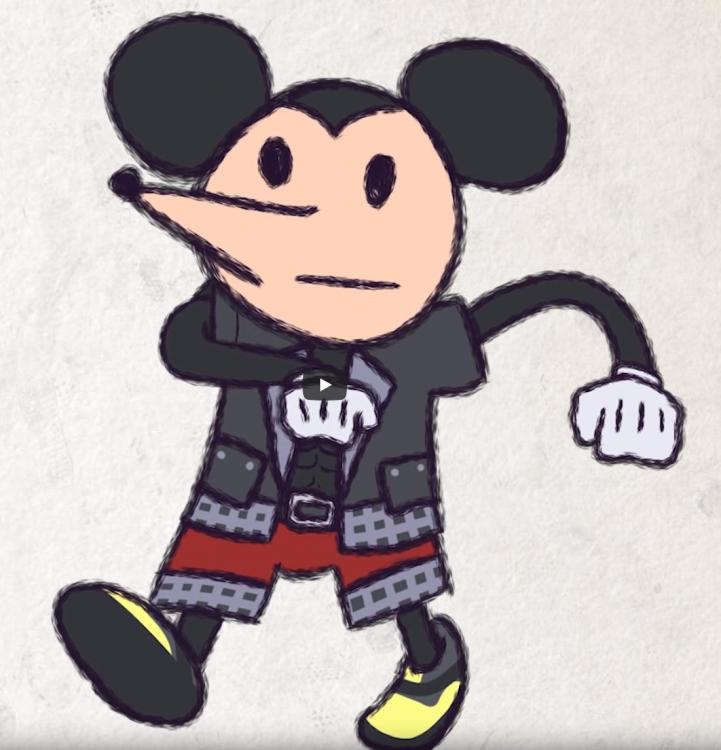
Must be something

Show them all the pasta Justin, make them suffer like I did

soracry

Join the conversation

You can post now and register later. If you have an account, sign in now to post with your account.

Guest
Reply to this topic...

Configure browser push notifications

Chrome (Android)
  1. Tap the lock icon next to the address bar.
  2. Tap Permissions → Notifications.
  3. Adjust your preference.
Chrome (Desktop)
  1. Click the padlock icon in the address bar.
  2. Select Site settings.
  3. Find Notifications and adjust your preference.
Scroll to the top