Jump to content
View in the app

A better way to browse. Learn more.

KH13 · for Kingdom Hearts

A full-screen app on your home screen with push notifications, badges and more.

To install this app on iOS and iPadOS
  1. Tap the Share icon in Safari
  2. Scroll the menu and tap Add to Home Screen.
  3. Tap Add in the top-right corner.
To install this app on Android
  1. Tap the 3-dot menu (⋮) in the top-right corner of the browser.
  2. Tap Add to Home screen or Install app.
  3. Confirm by tapping Install.
Posted
Note: This is a special chat topic! This means that posts can be shorter and more casual here. Posts here are linked with and may appear on our Discord server.
  • Replies 33.1k
  • Views 747.3k
  • Created
  • Last Reply

Top Posters In This Topic

Most Popular Posts

Posted Images

Featured Replies

a3wW9ve_460s.png

amvpNKj_460s.png

why’d it take me all of 3 minutes to get the joke

a5WqdbN_460s.png

Thanks I hate it

a true classic

a8GKYn1_460s.png

aLwdQBA_460s.png

a6Kj7Rq_460s.png

aVwVqvv_460s.png

agAEGWn_460s.png

image0.png

This is such a good deal ???

holy shit

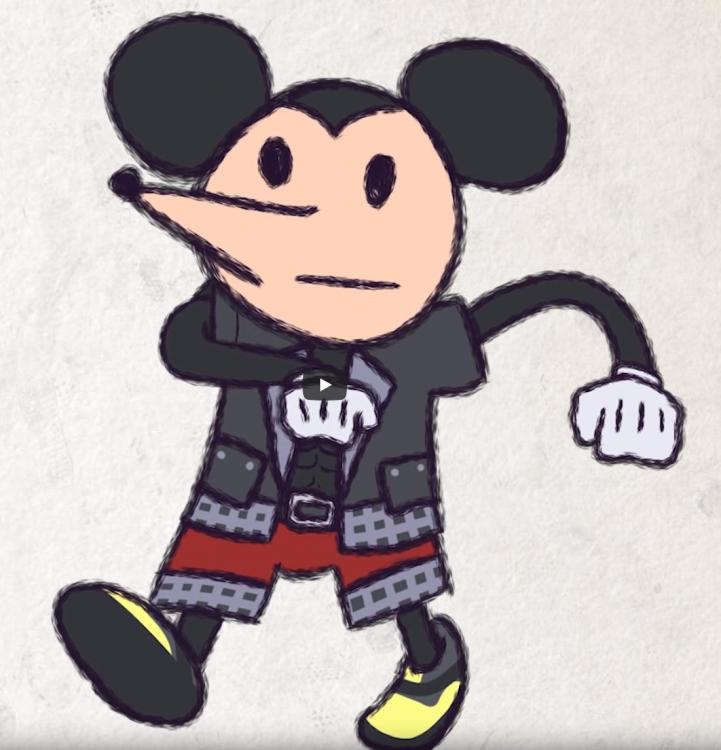
That's a beefy drawing of a PS5

Friendship ended with ps5
Now Ps5 Drawing Limited Edition is my best friend

???

Oh no

I want three marreeps

Join the conversation

You can post now and register later. If you have an account, sign in now to post with your account.

Guest
Reply to this topic...

Configure browser push notifications

Chrome (Android)
  1. Tap the lock icon next to the address bar.
  2. Tap Permissions → Notifications.
  3. Adjust your preference.
Chrome (Desktop)
  1. Click the padlock icon in the address bar.
  2. Select Site settings.
  3. Find Notifications and adjust your preference.
Scroll to the top